顯示具有 MVC 標籤的文章。 顯示所有文章

2011年1月28日 星期五

MVC3 Partial Output Cache - VaryByParam Demo

在本Blog前一篇文章中(MVC3 Partial Output Cache - Simple Demo),我們舉了一個簡單的例子,來說明MVC 3中的Partial Output Cache機制,那個例子在同一個網頁上顯示兩個時間字串,一個時間字串沒有cache,另一個時間字串有設定cache 10秒鐘,由那個例子可知道MVC 3 Partial Output Cache運作的基本方式與程式寫法。


但一般網站中都是佈滿各種資訊在一個web page中,有些需顯示即時資訊,有些靜態資訊則會設定cache,以加快網頁顯示速度,本篇文章中,我們以Northwind資料庫為例,針對查詢同一個產品類別(CategoryID)的結果,來進行Partial Output Cache:也就是透過設定VaryByParam的方式(本篇範例為VaryByParam=CategoryID),只要有網友查詢過A產品類別(CategoryID=A)之下所屬的所有產品,則查詢後的內容就會被cache起來,在設定的cache時間內(如Duration=100),若有網友又要查詢A這個產品類別(CategoryID=A),則伺服器不會再執行查詢程式,而是將cache中之前查過的相同內容直接輸出給第二次查詢同產品類別的網友,當然輸出部分,我們也是以之前文章所提到的Partial View()的方式來製作。我們以下先進行本範例展示,文章後半部再詳述各部份程式。


Demo


[02:17:11 PM] 點選/Product/QueryProduct這頁,可看到我們可下拉產品類別(CategoryID)來選擇我們要查詢的產品,如下圖:


[02:17:19 PM] 選擇CategoryID = Meat/Poultry,可看到目前該類別共有6個產品。如下圖:


[02:17:37 PM] 點選/Product/Create這頁,我們現在新增一個ProductName = KaKa,其CategoryID = Meat/Poultry,就是上個步驟所看到的那個產品類別。如下圖:


[02:17:49 PM] 再次回到/Product/QueryProduct這頁,如下圖選擇CategoryID = Meat/Poultry,可看到目前該類別仍維持有6個產品,伺服器並沒有再次執行查詢的動作,而是將Cache的內容直接回應(response)給查詢者,Cache機制產生效果了(OutputCache is working),而且又上方的時間仍然持續的被更新為最新時間(time is updated continually),所以Partial Output Cache 也產生效果了(Partial OutputCache is also working)。


[02:18:56 PM] 使用另外一個Browser,如下圖點選/Product/QueryProduct這頁,可看到目前該類別仍維持有6個產品,所以Cache機制持續生效中。


[02:19:10 PM] 時間過了我們設定的Cache時間(Duration=100秒),再次更新(refresh)一次/Product/QueryProduct這頁,可看到目前該類別已經變成7個產品,前面步驟新增的ProductName = KaKa這筆資料,現在已經被顯示出來,伺服器已經再次去執行查詢,並取回資料庫最新資料狀況,然後更新Cache內容。


下面我們詳述各部份程式如何撰寫。


Create a MVC3 Project


本範例中先建立一個MVC3的專案檔,並且配合Entity Framework Code First CTP5來連結與操作Northwind資料庫。建立好專案檔,加入EntityFramework.dll參考(Add reference),如下圖:


並加入資料庫連線到Web.config後(請參考之前文章這裡),請先建立Product這個Controller,並且ProductController之下,可去Create一個新Product的View與相關程式,這部份請參考一般MVC的作法,可參考Adding a Create Method and Create View


Model


這部分我們撰寫兩個cs檔案,用來處理與Category與Products相關的資料存取。
而QueryProductViewModel.cs則是上述Demo網頁(/Product/QueryProduct這頁)所用到的View Model描述。


1./Models/CategoryRepository.cs


   1:  public class CategoryRepository
   2:  {
   3:      Northwind northwind;
   4:      public CategoryRepository()
   5:      {
   6:          northwind = new Northwind();
   7:      }
   8:   
   9:      public IQueryable<Category> SelectAll()
  10:      {
  11:          return northwind.Categories;
  12:      }
  13:  }

2./Models/ProductRepository.cs


   1:  public class ProductRepository
   2:  {
   3:      Northwind northwind;
   4:      public ProductRepository()
   5:      {
   6:          northwind = new Northwind();
   7:      }
   8:   
   9:      public IEnumerable<Product> SelectAll()
  10:      {
  11:          return northwind.Products;
  12:      }
  13:   
  14:      public void Create(Product product)
  15:      {
  16:          northwind.Products.Add(product);
  17:          northwind.SaveChanges();
  18:      }
  19:   
  20:      public IQueryable<Product> Select(int id)
  21:      {
  22:          var list = from m in northwind.Products
  23:                     where m.CategoryID == id
  24:                     select m;
  25:          return list;
  26:      }
  27:  }

3./ViewModels/QueryProductViewModel.cs


   1:  public class QueryProductViewModel
   2:  {
   3:      public int CategoryID { get; set; }
   4:      public IQueryable<Product>  Products { get; set; }
   5:  }


Controller


這部分是本範例最重要的部份,我們在Product這個Controller中撰寫QueryProductPartialView這個Action,並且設定相關的OutputCache參數,這個Action,可以用來產生產生Partial Output Cache的Partial View。


1./Controllers/ProductController.cs


   1:  public class ProductController : Controller
   2:  {
   3:      ProductRepository productRep;
   4:      CategoryRepository categoryRep;
   5:      public ProductController()
   6:      {
   7:          productRep = new ProductRepository();
   8:          categoryRep = new CategoryRepository();
   9:      }
  10:   
  11:      public ActionResult QueryProduct()
  12:      {
  13:          ViewBag.Categories = categoryRep.SelectAll();
  14:          QueryProductViewModel qryPrd=new QueryProductViewModel();
  15:          return View(qryPrd);
  16:      }
  17:   
  18:      [HttpPost]
  19:      public ActionResult QueryProduct(QueryProductViewModel QryPrdView)
  20:      {
  21:          ViewBag.Categories = categoryRep.SelectAll();
  22:          QueryProductViewModel prds = new QueryProductViewModel()
  23:          {
  24:              CategoryID = QryPrdView.CategoryID
  25:          };
  26:          return View(prds);
  27:      }
  28:   
  29:      [OutputCache(Duration = 100, VaryByParam = "CategoryID")]
  30:      public ActionResult QueryProductPartialView(int CategoryID)
  31:      {
  32:          var result = productRep.Select(CategoryID);
  33:          QueryProductViewModel prds = new QueryProductViewModel()
  34:          {
  35:              CategoryID = CategoryID,
  36:              Products = result
  37:          };
  38:          return PartialView(prds);
  39:      }
  40:      
  41:      public ActionResult Create()
  42:      {
  43:      //請參考http://www.asp.net/mvc
  44:      } 
  45:   
  46:      [HttpPost]
  47:      public ActionResult Create(Product collection)
  48:      {
  49:      //請參考http://www.asp.net/mvc
  50:      }    
  51:  }


View


在查詢網頁上我們會產生一個可選擇不同產品類別(CategoryID)的DropDownList,然後下方會即時顯示查詢這屬於這類別的所有產品清單,顯示產品清單這部份,我們是用Partial View的方式來處理,所以我們也需撰寫QueryProductPartialView.cshtml,如下所示:


1./Views/Product/QueryProduct.cshtml


   1:  @model Mvc3Demo.ViewModels.QueryProductViewModel
   2:  <h2>QueryProduct</h2>
   3:   
   4:  @using (Html.BeginForm())
   5:  {
   6:      <div class="editor-field">Category Name:
   7:          @Html.DropDownListFor(model => model.CategoryID,
   8:              new SelectList(ViewBag.Categories,
   9:                  "CategoryID", "CategoryName"),
  10:              new { onchange = "this.form.submit();" })
  11:      </div>
  12:  }
  13:  @Html.Action("QueryProductPartialView", "Product",
  14:      new { CategoryID = Model.CategoryID })

2./Views/Product/QueryProductPartialView.cshtml


   1:  @model Mvc3Demo.ViewModels.QueryProductViewModel
   2:   
   3:  @if (Model.Products != null)
   4:  {
   5:  if (Model.Products.Count() > 0)
   6:  { 
   7:  <table>
   8:      <tr>
   9:          <th>Total:@Model.Products.Count()</th>
  10:          <th>
  11:              CategoryID
  12:          </th>
  13:          <th>
  14:              ProductName
  15:          </th>
  16:          <th>
  17:              UnitPrice
  18:          </th>
  19:      </tr>
  20:   
  21:  @foreach (var item in Model.Products)
  22:  {
  23:      <tr>
  24:          <td>
  25:              @Html.ActionLink("Edit", "Edit",
  26:                   new { id = item.ProductID })
  27:          </td>
  28:          <td>
  29:              @item.CategoryID
  30:          </td>
  31:          <td>
  32:              @item.ProductName
  33:          </td>
  34:          <td>
  35:              @String.Format("{0:F}", item.UnitPrice)
  36:          </td>
  37:      </tr>
  38:  }
  39:   
  40:  </table>
  41:  }
  42:  }

以上即是本範例的程式碼,Output Cache可幫助提供更快速的網頁瀏覽經驗,Partial Output Cache 更可彈性的提供部分內容的Cache機制。

2011年1月26日 星期三

MVC 3 Partial Output Cache - Simple Demo

在MVC 3中,我們可以使用PartialView()的方式來完成對網頁局部資料進行Output Cache,而不是全部網頁內容都Output Cache。

下面範例我們要建立兩個區域,兩個區域各顯示目前的時間字串,一個區域沒有進行Output Cache處理,所以當網頁refresh時,時間會一直被更新成最新時間;另外一個區域我們設定10秒鐘的Output Cache,所以雖然網頁一直被refresh,但時間字串經過10秒後,才被更新,故舊的時間字串被cache了10秒鐘,以下為實際範例程式碼描述。


建立Controller


我們建立一個MVC 3專案檔,並建立一個名為CacheDemoController的Controller,在其中我們建立一個可產生PartialView()的Action,就取名為PartialCache(),並且設定OutputCache的時間為10秒鐘。程式碼如下:


   1:  public class CacheDemoController : Controller
   2:  {
   3:      public ActionResult Index()
   4:      {
   5:          return View();
   6:      }
   7:   
   8:      [OutputCache(Duration = 10)]
   9:      public ActionResult PartialCache()
  10:      {
  11:          ViewBag.Time2 =
  12:              DateTime.Now.ToLongTimeString();
  13:          return PartialView();
  14:      } 
  15:  }

建立兩個View


這裡我們需要建立兩個View(),分別是Index.cshtml與PartialCache.cshtml。
Index.cshtml這個View用來顯示同一個網頁中,上半部時間字串內容沒有Cache;
下半時間字串內容被設定Cache.Index這個View內容如下:


   1:  <h2>OutputCache Demo</h2>
   2:  <p>--下行為沒有Cache區段(<b>No Cache</b>)</p>
   3:  <div class="bar1">@DateTime.Now.ToLongTimeString()
   4:  </div><br /><br />
   5:   
   6:  <p>--下行設定10秒鐘的Cache(<b>Partial Cache 10 mins</b>)
   7:  </p>
   8:  <div class="bar2">@Html.Action("PartialCache",
   9:      "CacheDemo",null)</div>

PartialCache.cshtml這個Partial View用來產生被設定Output Cache的時間字串內容,其內容就一行,如下:


   1:  <p>@ViewBag.Time2</p>

執行結果


我們執行上面建立好的MVC 3專案檔,可看到一開始時,上下兩個字串時間都一樣。如下圖:


隨後我們refresh這一頁,我們發現,上半部的時間字串已經被更新了,但下半部的時間字串仍然維持一開始的那個時間字串,由下半部的時間字串這可看到,這部份已經成功產生Output Cache部份網頁內容了,原來Partial View(由PartialCache.cshtml產生)這部份的內容並不會在Server端再被執行與產生。如下圖:


我們再持續refresh這一頁,上半部的時間字串也一直持續被更新了。過了10秒鐘,我們再refresh這一頁時,發現下半部時間字串現在被更新了,也就是上面的Partial View內容又自Server端執行一次(request),並將最新內容拋到(response)user端的Browser上了,如下圖:


有關MVC 3的Output Cache,基本上我們可參考Scott Guthrie的Announcing ASP.NET MVC 3這篇文章.

2011年1月22日 星期六

文章分類:MVC


2011-1-28 星期五

MVC3 Partial Output Cache - VaryByOaram Demo

在本Blog前一篇文章中(MVC3 Partial Output Cache - Simple Demo),我們舉了一個簡單的例子,來說明MVC 3中的Partial Output Cache機制,那個例子在同一個網頁上顯示兩個時間字串,一個時間字串沒有cache,另一個時間字串有設定cache 10秒鐘,由那個例子可知道MVC 3 Partial Output Cache運作的基本方式與程式寫法。


但一般網站中都是佈滿各種資訊在一個web page中,有些需顯示即時資訊,有些靜態資訊則會設定cache,以加快網頁顯示速度,本篇文章中,我們以Northwind資料庫為例,針對查詢同一個產品類別(CategoryID)的結果,來進行Partial Output Cache:也就是透過設定VaryByParam的方式(本篇範例為VaryByParam=CategoryID)...MORE


2011-1-26 星期三

MVC3 Partial Output Cache - Simple Demo

在MVC 3中,我們可以使用PartialView()的方式來完成對網頁局部資料進行Output Cache,而不是全部網頁內容都Output Cache。

下面範例我們要建立兩個區域,兩個區域各顯示目前的時間字串,一個區域沒有進行Output Cache處理,所以當網頁refresh時,時間會一直被更新成最新時間;另外一個區域我們設定10秒鐘的Output Cache,所以雖然網頁一直被refresh,但時間字串經過10秒後,才被更新,故舊的時間字串被cache了10秒鐘,以下為實際範例程式碼描述。...MORE


2011-1-22 星期日

MVC 專案範本可移除多餘web config描述

在減輕web server負荷以加快網站處理速度的議題中,我們通常可以透過移除沒有用到的元件(component)、模組(module)或是參考(reference),來減輕web server的負荷。這篇文章以MVC為範例,並說明基本上那些web config中沒有用到的模組是可以移除,讓web config看來更乾淨(Dry),進一步也減輕一些web server負荷。

我們在建立MVC專案時,若是以「Internet Application範本」來建立MVC專案,而非是以「空的專案範本」(Empty Template)來建立專案,
如下圖:...MORE


2010-12-21 星期二

MVC 與 HTML5

雖然MVC3 RC2已經發佈了(Announcing ASP.NET MVC 3 RC2),但是MVC本身對與HTML5的開發支援還是有待加強。好消息是在微軟的codeplex.com網站中,可下載在MVC中欲使用HTML5開發的輔助工具,名為MVC HTML 5 Toolkit。以下就實際舉一個MVC 2專案來說明如何使用這個HTML5的工具。...MORE


2010-10-10 星期日

.NET 4 + MVC2 設定真正 ValidateRequest = false 並回應更友善的錯誤頁面與錯誤訊息

因為.NET 4中,對惡意程式碼的欄截(AntiXSS),已經提升到BeginRquest的層面了,請看ASP.NET4 WhitePaper,若我們再搭配MVC2架構,想要「不啟用」ValidateRequest,則原先我們要在View頁面上自訂
...MORE


2010-10-03 星期日

Other Way For Setting Customer Error Page in MVC2

本文舉出3種方法去控制MVC2中,如何自訂Error Page,釐清在各個View中加入專屬於某個View的自訂Error page,或者是整個系統共用一個自訂Error Page的實際作法,一般微軟官方文件或其它技術Blog中並沒有針對這點加以整理與說明。
...MORE


2010-10-03 星期日

MVC2 Trim String

在MVC2中,加設我們有一個產品(Product)的資料需要維護,我們在Edit或者是Create的Form中,我們修改了一些欄位上的資料,我們希望可以將每個欄位多餘的空白字元去除(trim space),以免儲存回資料庫後,再次取出時,會產生錯誤,例如我們如果在Create的Form中,將產品的識別碼(PrdID)給輸入「A001  」,後面部小心多了一些空白字元,若是沒有在儲存回資料庫前,將這個欄位後面的空白去除掉,當這項產品儲存在資料庫後,我們再次輸入「A001」,要將這項產品編號的產品給查詢出來時,系統就會告訴我們找不到這項產品。因為資料庫存的是「A001  」,而非「A001」。本文基於MVC的架構,自View-Colltroller-Model這三個層次順序,由外圍到底層,說明如何簡單的使用既有的方法去達成去除字串後面多餘的空白字元。

...MORE


2010-08-03 星期二

如何在Html.TextBoxFor內設定Disable TextBox欄位

在一般Web Form應用中,我們可用TextBox控制項中的Enabled = "false" 來達成這個要求,但在MVC應用中,因為不採用控制項的方式,故我們需要在Html.TextBoxFor的屬性去標示。...MORE


2010-07-22 星期四

使用Entity Framework設定Complex Types-以MVC中使用stored procedure為範例

在MVC使用Entity Framework來存取資料庫中的Stored Procedure應用中,若是遇到Stored Procedure回應出來的是一組複雜資料欄位,而這組資料欄位是目前專案中沒有一個類別與之相對應,此時,我們可以另外建立一個新的類別,也可以使用Entity Framework中的Model Browser視窗中的Complex Types來建立這個新的資料欄位組合...MORE


2010-06-24 星期四

ASP.NET MVC2 如何使用多國語系資源檔

在ASP.NET MVC2中 , 我們想要在View或者是欄位驗證中 , 使用到 App_GlobalResources這個目錄下的多國語系資源檔 , 我們可以用下列方式來設定 .

1.假設目前有一個專案檔TOY , 且已經建立好App_GlobalResources這個目錄 , 我們點選該目錄後按右鍵選擇建立一個新的Resource檔案 :...MORE

MVC 專案範本可移除多餘web config描述

在減輕web server負荷以加快網站處理速度的議題中,我們通常可以透過移除沒有用到的元件(component)、模組(module)或是參考(reference),來減輕web server的負荷。這篇文章以MVC為範例,並說明基本上那些web config中沒有用到的模組是可以移除,讓web config看來更乾淨(Dry),進一步也減輕一些web server負荷。

我們在建立MVC專案時,若是以「Internet Application範本」來建立MVC專案,而非是以「空的專案範本」(Empty Template)來建立專案,
如下圖:


這樣建立起來的專案檔,我們可打開web.config檔案來看,我們可發現有很多「可能」不會用到的web config 描述,例如ASP.NET中內建的的Membership認證與授權機制。

因為一般網站專案,我們通常會自己建立授權機制,而不會去使用ASP.NET中內建的的Membership認證與授權機制,所以我們若真的沒用到時,可以大膽的將這些在web.config中不會用到的任何描述移除,以減輕Web Server的負荷,好比下列這些在web.config中的描述沒有使用時,都可以大膽將它們移除:


移除後,我們web.config看來「瘦」多了,網站執行起來,也不會有任何錯誤。當然,其他需用到的資源與元件,還是得乖乖的納入web.config中。

2010年12月21日 星期二

MVC 與 HTML5

雖然MVC3 RC2已經發佈了(Announcing ASP.NET MVC 3 RC2),但是MVC本身對與HTML5的開發支援還是有待加強。好消息是在微軟的codeplex.com網站中,可下載在MVC中欲使用HTML5開發的輔助工具,名為MVC HTML 5 Toolkit。以下就實際舉一個MVC 2專案來說明如何使用這個HTML5的工具。


先在開發環境建立一個ASP.NET MVC 2 專案檔,如下圖:


使用System.Web.Mvc.Html5元件


我們可先下載微軟官方MVC HTML 5 Toolkit,然後將這個工具在開發環境中當作是一個参考物件(Add Reference)包含到專案檔中,但沒有下載基本上也是可以全手工撰寫HTML5的新式標籤,有Toolkit只是比較方便撰寫程式,如下圖:


引用完後,可看到System.Web.Mvc.Html5這個元件已經包含在我們專案檔中了,如下圖:


在web.config設定檔加上 <add namespace="System.Web.Mvc.Html5" /> 讓整個專案都可使用,如下:


   1:  </system.web>
   2:    <pages >
   3:      <namespaces>
   4:        <add namespace="System.Web.Mvc.Html5" />
   5:      </namespaces>
   6:    </pages>
   7:  </system.web>

使用HTML5的Email、Slider Bar 與 Tag mark等標籤


在\Views\Home\Index.aspx程式中輸入以下程式碼與HTML5的新標籤,我們在撰寫的過程中,可以更方便的使用剛才引入的元件(System.Web.Mvc.Html5),配合MVC的寫法(<%: Html.Html5TextFor(……) %>),完整式碼如下:


   1:  <%@ Page Language="C#" MasterPageFile="~/Views/Shared/Site.Master"
   2:   Inherits="System.Web.Mvc.ViewPage" %>
   3:  <asp:Content ID="Content1" ContentPlaceHolderID="TitleContent"
   4:   runat="server">
   5:  HTML 5 Demo  
   6:  </asp:Content>
   7:  <asp:Content ID="Content2" ContentPlaceHolderID="MainContent"
   8:   runat="server">
   9:      <h2><%: ViewData["Message"] %></h2>
  10:      <b>Demo 1 : Email Type</b><br />
  11:      <label for="email">
  12:          請輸入您的Email:</label>
  13:      <%: Html.Html5TextBox("userEmal", InputTypes.InputType.Email,
  14:          "horacelin@chinatrust.com.tw") %>
  15:      <p>---------------------------------------------------</p>
  16:      <b>Demo 2 : Slider Bar</b>
  17:      <p>
  18:          Total Recall Awesomness Gauge
  19:      </p>    
  20:      <%: Html.Html5Range(1, 50, 2, 25, null) %>
  21:      <p>---------------------------------------------------</p>
  22:      <b>Demo 3 : Tag mark</b>
  23:      <p>
  24:          Now we will Demo...        
  25:          <mark>HTML 5 &lt;mark&gt; Demo</mark>
  26:          let you know something!
  27:      </p>
  28:      <button type="submit">
  29:          Submit Form
  30:      </button>
  31:  </asp:Content>

以IE9 與 Chrome 來測試MVC+HTML5


接著我們也使用不同的瀏覽器來觀察,以下是Google Chrome瀏覽器執行MVC + HTML5撰寫的範例網頁後的結果,這三個新的HTML5標籤,全部都可顯示預期的效果,如下圖:


如果我們使用IE9執行我們這個範例網頁,則很不幸的,這3種新的HTML5剛好都不能支援,如下圖:


結語


HTML5 中包含了很多方便的新式標籤,雖然我們在VS 2010中看不到對HTML5的支援開發工具,但很快的VS 2010 SP1中已經可以支援HTML5的開發,且未來HTML5若一旦成為正式版本後,無論是傳統的Web Form或是MVC的方式,相信微軟應該很快推出新版本的開發工具來支援 .NET + HTML5的開發。


参考網址


HTML5

W3C組織HTML5網址
W3Schools HTML5學習資源網址
Mozilla組織HTML5資源網址
維基百科HTML 5
微軟IE9 Beta and HTML5 CSS3
Google HTML5展示與教學網站(Cool)

MVC 與 VS 2010 SP1

微軟ASP.NET MVC
微軟MVC Html5 ToolKit網址
MVC + HTML5
VS 2010 SP1 介紹

2010年12月8日 星期三

jQuery Ajax Mvc Part 8 - jQuery UI Progress Bar + Json (以jQuery UI Progress Bar介面 + 取回Json型態資料)

在這個例子MVC的架構中,希望能夠套用jQuery .Ajax()的方式,透過透過POST方式呼叫給Controller中的Action,經過Action處理後(可能是查詢或存取後端資料庫處理元件),透過jQuery UI progress bar的介面方式,回應目前系統處理狀態在使用者所瀏覽的網頁上,最後顯示Action處理後的Json型態資料。


首先使用VS Web Developer 2010 Express建立一個ASP.NET MVC的專案。


首先得引用jQuery,這裡我們使用Google API的方式,當然也可以將jQuery的相關js檔案直接加入我們的專案檔中來使用。

   1:  <script type="text/javascript" src="https://ajax.googleapis.com
        /ajax/libs/jquery/1.4.3/jquery.min.js"></script>
   2:  <script type="text/javascript" src="https://ajax.googleapis.com
        /ajax/libs/jqueryui/1.8.6/jquery-ui.min.js"></script>

我們在/Models內建立一個Product類別,如下:


   1:  public class Product
   2:  {
   3:      public string Name { get; set; }
   4:      public int Price { get; set; }
   5:  }

接著,我們在HomeController中,加上兩個Action,可看到我們為了拉長Action處理時間,特別加上sleep()方法以更明顯來觀察progress bar的變化,並且回應一個「處理完成」的字串訊息如下:

   1:  public ActionResult jQueryDemo8()
   2:  {
   3:      return View();
   4:  }
   5:   
   6:  public JsonResult jQueryJasonProgressBar()
   7:  {
   8:      for (int i = 0; i < 8; i++)
   9:      {
  10:          Thread.Sleep(800);
  11:      }
  12:      List<Product> list = new List<Product>();
  13:      list.Add(new Product { Name = "F001", Price = 1320 });
  14:      list.Add(new Product { Name = "F002", Price = 3301 });
  15:      list.Add(new Product { Name = "F003", Price = 2623 });
  16:      list.Add(new Product { Name = "F004", Price = 1320 });
  17:      list.Add(new Product { Name = "F005", Price = 3301 });
  18:      list.Add(new Product { Name = "F006", Price = 2623 });
  19:      return Json(list);
  20:  }

並且建立一個jQueryDemo8.aspx的View,然後加上jQuery的.ajax()語法,說明如下:
1.URL:這裡就是我們MVC架構中,我們要POST的/{Controller}/{Action},就是上面程式碼中的HomeController中的jQueryJasonProgressBar這個Action。
2.type:我們使用POST的方式。
3.async:true表示我們需要使用同步即時的方式取得Server回應。
4.data:{},就是我們要這個範例並沒有傳給jQueryJasonProgressBar這個Action任何參數。
5.datatype:"json",表示我們回傳回來的是json型態資料。
6.error:當有錯誤發生時,在id=errormsg 區段中顯示錯誤訊息。
7.success:若執行完畢,則讓progress bar顯示長度為100%,並已Json型態傳回與顯示資料至id=Results的<div>區塊內。


   1:  <h2>jQuery Ajax Mvc - jQuery UI Progress Bar</h2>
   2:  <p>使用jQuery UI 的progress bar效果+
   3:  取回Json資料型態(一個List->包含數個Product物件資料)</p>
   4:   
   5:  <script type="text/javascript" language="javascript">
   6:  $(document).ready(function () {
   7:      $("#progressbar").progressbar({ value: 0 });
   8:      $("#progressbar").hide();
   9:      $("#loadingMsg").hide();
  10:      $("#btnSubmit").click(function () {
  11:          $("#progressbar").show();
  12:          $("#loadingMsg").show();
  13:          //設定progress bar的顯示方式與速度
  14:          var intervalID = setInterval(updateProgress, 250);
  15:          $.ajax({
  16:              url: "/Home/jQueryJasonProgressBar",
  17:              type: "POST",
  18:              async: true,
  19:              data: {},
  20:              dataType: "json",                                    
  21:              //當有錯誤發生時,在errormsg <div>中顯示錯誤訊息
  22:              error: function (xhr, status, thrownError) {
  23:                  $("#errormsg").text(xhr.statusText);
  24:                  $("#errormsg").show();
  25:              },
  26:              //當處理成功時,關閉progerss bar與loading 訊息,
  27:              //並且顯示Action處理後之資料
  28:              success: function (data) {
  29:                  $("#progressbar").progressbar("value", 100);
  30:                  $("#progressbar").hide();
  31:                  var result = '';
  32:                  $.each(data, function (index, d) {
  33:                      if (d.Name != '') {
  34:                          result += "Name:" + d.Name + " | ";
  35:                          result += "Price:" + d.Price + "<br/>";
  36:                      }
  37:                  });
  38:                  $("#Results").html(result);
  39:                  clearInterval(intervalID);
  40:                  $("#loadingMsg").hide();
  41:              }
  42:          });
  43:          return false;
  44:      });
  45:  });
  46:   
  47:  function updateProgress() {
  48:      var value = $("#progressbar").progressbar("option", "value");
  49:      if (value < 100) {
  50:          $("#progressbar").progressbar("value", value + 1);
  51:      }
  52:  }         
  53:  </script>
  54:   
  55:  <div id="progressbar"></div>
  56:  <div id="loadingMsg">Loading....</div>
  57:  <div id="Results"></div><br />
  58:  <input type="button" id="btnSubmit" value="Submit" />
  59:  <div id="errormsg" style="color:Red;"></div>


我們就可以執行這個MVC專案,我們點選Demo8這個頁籤,如下圖:


然後按下Submit按鈕後,就看到隨著處理時間經過而顯示灰色bar由短變長的jQuery UI progress bar效果與loading中的訊息,如下圖:


處理完畢後,可看到以Ajax同步的方式即時回傳的資料顯示在網頁上。

2010年11月30日 星期二

jQuery Ajax Mvc Part 7 - jQuery UI Progress Bar

在這個例子MVC的架構中,希望能夠套用jQuery .Ajax()的方式,透過透過POST方式呼叫給Controller中的Action,經過Action處理後(可能是查詢或存取後端資料庫處理元件),透過jQuery UI progress bar的介面方式,回應目前系統處理狀態在使用者所瀏覽的網頁上。


首先使用VS Web Developer 2010 Express建立一個ASP.NET MVC的專案。


首先得引用jQuery,這裡我們使用Google API的方式,當然也可以將jQuery的相關js檔案直接加入我們的專案檔中來使用。

   1:  <script type="text/javascript" src="https://ajax.googleapis.com
        /ajax/libs/jquery/1.4.3/jquery.min.js"></script>
   2:  <script type="text/javascript" src="https://ajax.googleapis.com
        /ajax/libs/jqueryui/1.8.6/jquery-ui.min.js"></script>

接著,我們在HomeController中,加上兩個Action,可看到我們為了拉長Action處理時間,特別加上sleep()方法以更明顯來觀察progress bar的變化,並且回應一個「處理完成」的字串訊息如下:


   1:  public ActionResult jQueryDemo7()
   2:  {
   3:      return View();
   4:  }
   5:   
   6:  public ActionResult jQueryProgressBar()
   7:  {
   8:      for (int i = 0; i < 10; i++)
   9:      {
  10:          Thread.Sleep(100);
  11:      }
  12:      Response.Write("處理完成");
  13:      return null;
  14:  }

並且建立一個jQueryDemo7.aspx的View,然後加上jQuery的.ajax()語法,說明如下:
1.URL:這裡就是我們MVC架構中,我們要POST的/{Controller}/{Action},就是上面程式碼中的HomeController中的jQueryProgressBar這個Action。
2.type:我們使用POST的方式。
3.async:true表示我們需要使用同步即時的方式取得Server回應。
4.data:{},就是我們要這個範例並沒有傳給jQueryProgressBar這個Action任何參數。
5.datatype:"text",表示我們回傳回來的是text型態資料。
6.success:若執行完畢,則讓progress bar顯示長度為100%,並以html格式顯示「處理完成」的字串訊息至id=Results的<div>區塊內。


   1:  <h2>jQuery Ajax Mvc - jQuery UI Progress Bar</h2>
   2:  <p>使用jQuery UI 的prpgress bar效果</p>
   3:  <script type="text/javascript" language="javascript">
   4:  $(document).ready(function () {
   5:      $("#progressbar").progressbar({ value: 0 });
   6:      $("#btnSubmit").click(function () {
   7:          var intervalID = setInterval(updateProgress, 100);
   8:          $.ajax({                   
   9:              url: "/Home/jQueryProgressBar",
  10:              type: "POST",
  11:              async: true,
  12:              data: {},
  13:              dataType: "text",              
  14:              success: function (data) {
  15:                  $("#progressbar").progressbar("value", 100);
  16:                  $("#Results").html(data);
  17:                  clearInterval(intervalID);
  18:              }                  
  19:          });
  20:          return false;
  21:      });
  22:  });
  23:   
  24:  function updateProgress() {
  25:      var value = $("#progressbar").progressbar("option", "value");
  26:      if (value < 100) {
  27:          $("#progressbar").progressbar("value", value + 1);
  28:      }
  29:  }                
  30:  </script>
  31:   
  32:  <div id="progressbar"></div>
  33:  <div id="Results"></div><br />                             
  34:  <input type="button" id="btnSubmit" value="Submit" />   

我們就可以執行這個MVC專案,我們點選Demo7這個頁籤,如下圖:


然後按下Submit按鈕後,就看到隨著處理時間經過而顯示灰色bar由短變長的jQuery UI progress bar效果,如下圖:


系統處理完成後,我們收到Action傳來的「處理完成」的字串訊息,如下圖:

jQuery Ajax Mvc Part 6 - Response Json use .getJSON() + Display with ListItem(將資料傳回後放入ListItem中)

在這個例子MVC的架構中,希望能夠套用jQuery .Ajax()的方式,透過.getJSON()的方式呼叫給Controller中的Action,透過Action處理後(查詢或存取後端資料庫處理元件),Return一個Json類型的資料,並且以ListItem的下拉清單方式及時回應在使用者所瀏覽的網頁上。


首先使用VS Web Developer 2010 Express建立一個ASP.NET MVC的專案。


首先得引用jQuery,這裡我們使用Google API的方式,當然也可以將jQuery的相關js檔案直接加入我們的專案檔中來使用。

   1:  <script type="text/javascript" src="https://ajax.googleapis.com
        /ajax/libs/jquery/1.4.3/jquery.min.js"></script>
   2:  <script type="text/javascript" src="https://ajax.googleapis.com
        /ajax/libs/jqueryui/1.8.6/jquery-ui.min.js"></script>


接著,我們在HomeController中,加上兩個Action,可看到我們需標示這是一個JsonResult的Action與return出Json型態資料;因為我們MVC這邊預設不用get方式,所以當我們使用到jQuery的.getJSON()時,須特別加上JsonRequestBehavior.AllowGet這個准許使用get的設定,如下:


   1:  public ActionResult jQueryDemo6()
   2:  {
   3:      return View();
   4:  }
   5:   
   6:  public JsonResult jQueryGetListItem()
   7:  {
   8:      List<ListItem> list = new List<ListItem>() {
   9:          new ListItem() { Text = "2001太空漫遊 /
                                2001: A Space Odyssey" },
  10:          new ListItem() { Text = "銀翼殺手 / Blade Runner" },
  11:          new ListItem() { Text = "ET /
                                E.T. the Extra-Terrestrial" },
  12:          new ListItem() { Text = "消失的1943 / 
                                The Philadelphia Experiment" },
  13:          new ListItem() { Text = "魔鬼終結者 / The Terminator" },
  14:          new ListItem() { Text = "異形 / Aliens" },
  15:          new ListItem() { Text = "星際爭霸戰 / Star Trek XI" }
  16:      };
  17:      return this.Json(list, JsonRequestBehavior.AllowGet);
  18:  }

並且建立一個jQueryDemo6.aspx的View,然後加上jQuery的.ajax()語法,說明如下:
1.each():Ajax讀取迴圈資料的語法,因目前回應的Jason資料型態中包含List資料,故我們使用.each()語法,將Action的itemData資料欄位值一一讀出,然後加到list這個變數中。
2.getJSON():我們使用Get的方式取得Json型態的回應資料(可参考jQuery文件),有3個参數需留意:


.getJSON()(被執行的URL,get的輸入参數,執行後回應的結果)


被執行的URL就是上面程式碼中的HomeController中的jQueryGetListItem這個Action,然後把執行後回應的結果資料填入itemList的Html標籤中。


   1:  <script type="text/javascript">
   2:  $('#itemsList').disableSelection();
   3:  $.fn.addItems = function (data) {
   4:      return this.each(function () {
   5:          var list = this;
   6:          $.each(data, function (index, itemData) {
   7:              var option = new Option(itemData.Text);
   8:              list.add(option);
   9:          });
  10:      });
  11:  };
  12:   
  13:  $(function () {
  14:      $('#itemsList').show();
  15:      $('#btnSubmit').click(function () {
  16:          $.getJSON("/Home/jQueryGetListItem",
  17:             null, function (data) {
  18:              $("#itemsList").addItems(data);
  19:          });
  20:      });
  21:  });
  22:  </script>
  23:  <button id="btnSubmit" name="btnClick">
  24:      科幻電影Science Fiction Films</button>
  25:  <br />
  26:  <select id="itemsList" name="itemsList">
  27:  </select>

我們就可以執行這個MVC專案,我們點選Demo6這個頁籤,如下圖:


然後按下「科幻電影Science Fiction Films」按鈕(Submit)後,就可呈現Ajax即時回應資料的網頁體驗,且這裡是以ListItem的下拉清單方式呈現科幻電影的名稱如下圖:

2010年11月29日 星期一

jQuery Ajax Mvc Part 5 - Get + Response Json use .getJSON() (使用.getJSON()方法取得資料)

在這個例子MVC的架構中,希望能夠套用jQuery .Ajax()的方式,透過.getJSON()的方式呼叫給Controller中的Action,透過Action處理後(查詢或存取後端資料庫處理元件),Return一個Json類型的資料及時回應給使用者所瀏覽的網頁上。


首先使用VS Web Developer 2010 Express建立一個ASP.NET MVC的專案。


首先得引用jQuery,這裡我們使用Google API的方式,當然也可以將jQuery的相關js檔案直接加入我們的專案檔中來使用。

   1:  <script type="text/javascript" src="https://ajax.googleapis.com
        /ajax/libs/jquery/1.4.3/jquery.min.js"></script>
   2:  <script type="text/javascript" src="https://ajax.googleapis.com
        /ajax/libs/jqueryui/1.8.6/jquery-ui.min.js"></script>

我們再/Models內建立一個Product類別,如下:


   1:  public class Product
   2:  {
   3:      public string Name { get; set; }
   4:      public int Price { get; set; }
   5:  }

接著,我們在HomeController中,加上兩個Action,透過傳入的参數Category來選擇輸出資料,可看到我們需標示這是一個JsonResult的Action與return出Json型態資料;因為我們MVC這邊預設不用get方式,所以當我們使用到jQuery的.getJSON()時,須特別加上JsonRequestBehavior.AllowGet這個准許使用get的設定,如下:


   1:  public ActionResult jQueryDemo5()
   2:  {
   3:      return View();
   4:  }
   5:  public JsonResult jQueryGetJsonByParm(string Category)
   6:  {
   7:      List<Product> list = new List<Product>();
   8:      if (Category == "A")
   9:      {
  10:         list.Add(new Product { Name = "A01", Price = 11 });
  11:         list.Add(new Product { Name = "A02", Price = 13 });
  12:         list.Add(new Product { Name = "A03", Price = 23 });
  13:      }
  14:      else
  15:      {
  16:         
  17:         list.Add(new Product { Name = "B01", Price = 13 });
  18:         list.Add(new Product { Name = "B02", Price = 33 });
  19:         list.Add(new Product { Name = "B03", Price = 26 });
  20:         list.Add(new Product { Name = "B04", Price = 13 });
  21:         list.Add(new Product { Name = "B05", Price = 33 });
  22:         list.Add(new Product { Name = "B06", Price = 26 });
  23:      }
  24:      return Json(list, JsonRequestBehavior.AllowGet);
  25:  }

並且建立一個jQueryDemo5.aspx的View,然後加上jQuery的.ajax()語法,說明如下:
1.URL:這裡就是我們MVC架構中,我們要POST的/{Controller}/{Action},就是上面程式碼中的HomeController中的jQueryGetJsonByParm這個Action。
2.getJSON():我們使用Get的方式取得Json型態的回應資料(可参考jQuery文件),
有3個参數需留意:


.getJSON()(被執行的URL,get的輸入参數,執行後回應的結果)


3.each():Ajax讀取迴圈資料的語法,因目前回應的Jason資料型態中包含List資料,故我們使用.each()語法,並透過操作 d 這個物件,將Name與Price這些資料欄位的值一一讀出,當然也可使用for...next這類的讀取語法。


   1:  <h2>jQuery Ajax Mvc - Get + Response Json use .getJSON()</h2>
   2:  <p>用.getJSON()方式,Send給Server一個(或數個)參數,
   3:  並自Server取回JSON類型資料(一個List->包含數個Product物件資料)</p>
   4:  <script type="text/javascript">
   5:      $(document).ready(function () {
   6:          $('#btnSubmit').click(function () {
   7:              var URL = "/Home/jQueryGetJsonByParm";
   8:              $.getJSON(URL, { Category: $("#Category").val() },
   9:                 function (data) {
  10:                  var resultA = '';
  11:                  $.each(data, function (index, d) {
  12:                      if (d.Name != '') {
  13:                          resultA += "Product Name:" 
  14:                              + d.Name + " | ";
  15:                          resultA += "Price:" 
  16:                             + d.Price + "<br/>";
  17:                      }
  18:                  });
  19:                  $("#Results").html(resultA);
  20:              });
  21:          });
  22:      });
  23:  </script>
  24:  Input A or B Category:<input id="Category" type="text" />
  25:  <input id="btnSubmit" type="submit" value="Submit"/>
  26:  <div id="Results">
  27:  </div>


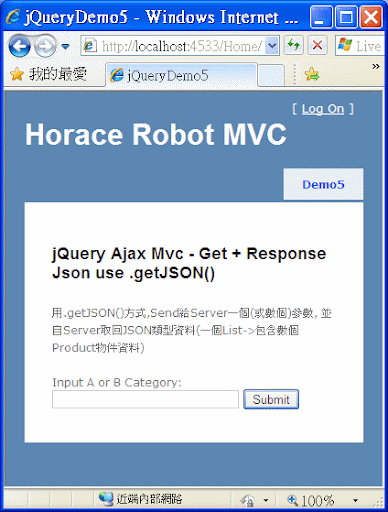
我們就可以執行這個MVC專案,我們點選Demo5這個頁籤,並輸入A或B任一種類別,當然可自行加上一些驗證與檢核功能,如下圖:


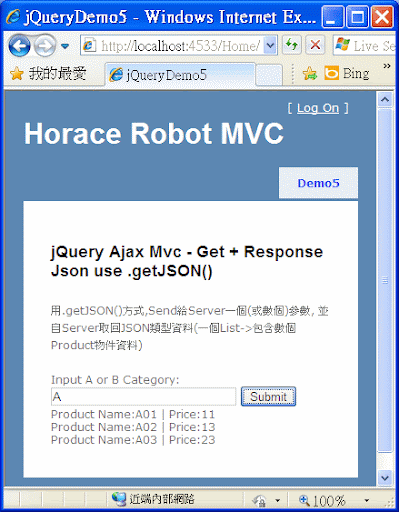
然後按下Submit按鈕後,就可呈現Ajax即時回應資料的網頁體驗,如下圖:

jQuery Ajax Mvc Part 4 - POST + Response List Json (傳回List方式的Json型態資料)

在這個例子MVC的架構中,希望能夠套用jQuery .Ajax()的方式,透過POST方式呼叫給Controller中的Action,透過Action處理後(查詢或存取後端資料庫處理元件),Return一個Json類型的資料及時回應給使用者所瀏覽的網頁上。


首先使用VS Web Developer 2010 Express建立一個ASP.NET MVC的專案。


首先得引用jQuery,這裡我們使用Google API的方式,當然也可以將jQuery的相關js檔案直接加入我們的專案檔中來使用。

   1:  <script type="text/javascript" src="https://ajax.googleapis.com
        /ajax/libs/jquery/1.4.3/jquery.min.js"></script>
   2:  <script type="text/javascript" src="https://ajax.googleapis.com
        /ajax/libs/jqueryui/1.8.6/jquery-ui.min.js"></script>

我們再/Models內建立一個Product類別,如下:


   1:  public class Product
   2:  {
   3:      public string Name { get; set; }
   4:      public int Price { get; set; }
   5:  }

接著,我們在HomeController中,加上兩個Action,可看到我們需標示這是一個JsonResult的Action與return出Json型態資料,如下:


   1:  public ActionResult jQueryDemo4()
   2:  {
   3:      return View();
   4:  }
   5:   
   6:  public JsonResult jQueryGetProductJson()
   7:  {
   8:      List<Product> list = new List<Product>();
   9:      list.Add(new Product { Name = "P001", Price = 1100 });
  10:      list.Add(new Product { Name = "P002", Price = 1300 });
  11:      list.Add(new Product { Name = "P003", Price = 2300 });
  12:      return Json(list);
  13:  }

並且建立一個jQueryDemo4.aspx的View,然後加上jQuery的.ajax()語法,說明如下:
1.url:這裡就是我們MVC架構中,我們要POST的/{Controller}/{Action},就是上面程式碼中的HomeController中的jQueryGetProductJson這個Action。
2.type:我們使用POST的方式。
3.async:true表示我們需要使用同步即時的方式取得Server回應。
4.data:{},這個範例並沒有傳給jQueryGetProductJson這個Action任何參數。
5.datatype:"json",表示我們回傳回來的是json型態資料。
6.success:在這裡我們以html格式顯示至id=Results的<div>區塊內。
7.each():Ajax讀取迴圈資料的語法,因目前回應的Jason資料型態中包含List資料,故我們使用.each()語法,並透過操作d這個物件,將Name與Price這些資料欄位的值一一讀出,當然也可使用for...next這類的讀取語法。


   1:  <h2>jQuery Ajax Mvc POST + Response JSON</h2>
   2:  <p>用POST方式,自Server取回JSON類型資料
   3:      (一個List->包含數個Product物件資料)</p>
   4:  <script type="text/javascript">
   5:      $(document).ready(function () {
   6:          $('#btnSubmit').click(function () {
   7:              $.ajax({
   8:                  url: "/Home/jQueryGetProductJson",
   9:                  type: "POST",
  10:                  async: true,
  11:                  data: {},
  12:                  dataType: "json",                    
  13:                  success: function (data) {
  14:                      var result = '';
  15:                      $.each(data, function (index, d) {
  16:                          if (d.Name != '') {
  17:                              result += "Product Name:" +
  18:                               d.Name + " | ";
  19:                              result += "Price:" +
  20:                               d.Price + "<br/>";
  21:                          }
  22:                      });
  23:                      $("#Results").html(result);
  24:                  }
  25:              })
  26:          }); 
  27:      });
  28:  </script>        
  29:  <input id="btnSubmit" type="submit"/>
  30:  <div id="Results"></div>

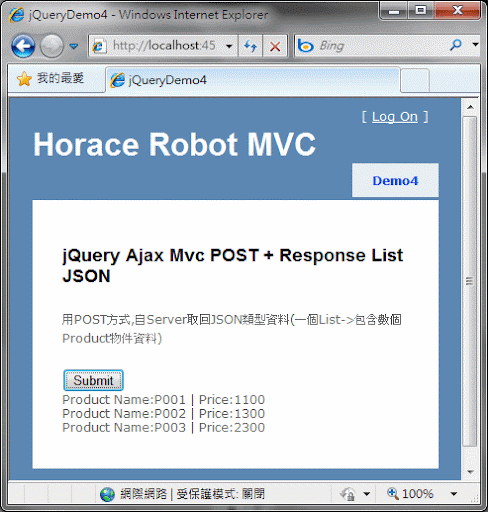
我們就可以執行這個MVC專案,我們點選Demo4這個頁籤,如下圖:


然後按下Submit按鈕後,就可呈現Ajax即時回應資料的網頁體驗,如下圖:

jQuery Ajax Mvc Part 3 - POST Parm + Response Data(傳遞參數與回應Html型態字串資料)

在這個例子MVC的架構中,希望能夠套用jQuery .Ajax()的方式,透過POST方式,將網頁上輸入兩個参數給Controller中的Action,透過Action處理後(查詢或存取後端資料庫處理元件),及時回應一群資料給使用者所瀏覽的網頁上。


首先使用VS Web Developer 2010 Express建立一個ASP.NET MVC的專案。


首先得引用jQuery,這裡我們使用Google API的方式,
當然也可以將jQuery的相關js檔案直接加入我們的專案檔中來使用。

   1:  <script type="text/javascript" src="https://ajax.googleapis.com
        /ajax/libs/jquery/1.4.3/jquery.min.js"></script>
   2:  <script type="text/javascript" src="https://ajax.googleapis.com
        /ajax/libs/jqueryui/1.8.6/jquery-ui.min.js"></script>

我們再/Models內建立一個Product類別,如下:


   1:  public class Product
   2:  {
   3:      public string Name { get; set; }
   4:      public int Price { get; set; }
   5:  }

接著,我們在HomeController中,加上兩個Action,我們將資料簡化存在List型態變數中,然後用StringBuilding將傳入参數與資料包成Html碼輸出到前端網頁顯示出來,如下:


   1:  public ActionResult jQueryDemo3()
   2:  {
   3:      return View();
   4:  }
   5:   
   6:  public ActionResult jQueryGetProductData(string uName, string uCity)
   7:  {
   8:      List<Product> list = new List<Product>();
   9:      list.Add(new Product { Name = "B001", Price = 1320 });
  10:      list.Add(new Product { Name = "B002", Price = 3301 });
  11:      list.Add(new Product { Name = "B003", Price = 2623 });
  12:      list.Add(new Product { Name = "B004", Price = 1320 });
  13:      list.Add(new Product { Name = "B005", Price = 3301 });
  14:      list.Add(new Product { Name = "B006", Price = 2623 });
  15:      StringBuilder sb = new StringBuilder();
  16:      sb.Append("Customer ID:" + uName +
  17:          "<br/>City:" + uCity + "<br/>");
  18:      foreach (Product p in list)
  19:      {
  20:          sb.Append("Product Name:" + p.Name +
  21:              "  |  Price:" + p.Price  + "<br/>");
  22:      }
  23:      Response.Write(sb.ToString());
  24:      return null;
  25:  }

並且建立一個jQueryDemo3.aspx的View,然後加上jQuery的.ajax()語法,說明如下:
1.url:這裡就是我們MVC架構中,我們要POST的/{Controller}/{Action},就是上面程式碼中的HomeController中的jQueryGetProductData這個Action。
2.type:我們使用POST的方式。
3.async:true表示我們需要使用同步即時的方式取得Server回應。
4.data:我們取得網頁上輸入的客戶的Name與City兩個TextBox的值,對應並傳遞給jQueryGetProductData這個Action兩個参數,uName與uCity。
5.datatype:"text",表示我們回傳回來的是text型態資料。
6.success:在這裡我們以html格式顯示至id=Results的<div>區塊內。


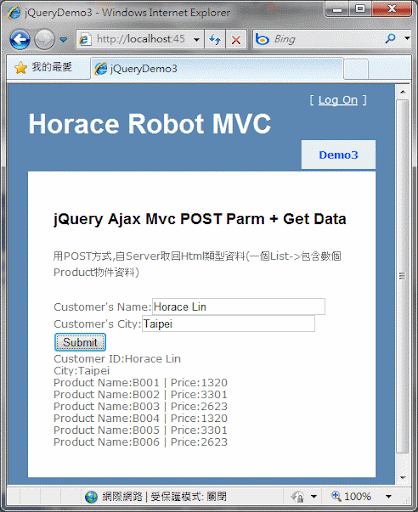
   1:  <h2>jQuery Ajax Mvc POST Parm + Get Data</h2>
   2:  <p>用POST方式,自Server取回Html類型資料(一個List->包含數個Product物件資料)</p>
   3:  <script type="text/javascript">
   4:      $(document).ready(function () {
   5:          $('#btnSubmit').click(function () {
   6:              $.ajax({
   7:                  url: "/Home/jQueryGetProductData",
   8:                  type: "POST",
   9:                  async: true,
  10:                  data: "uName=" + $("#Name").val() + "&uCity=" + $("#City").val(),
  11:                  datatype: "text",
  12:                  success: function (data) {
  13:                      $("#Results").html(data);
  14:                  }
  15:              });
  16:          });
  17:      });    
  18:  </script>
  19:  Customer's Name:<input id="Name" type="text" /><br />
  20:  Customer's City:<input id="City" type="text" /><br />
  21:  <input id="btnSubmit" type="submit" value="Submit"/>
  22:  <div id="Results"></div>

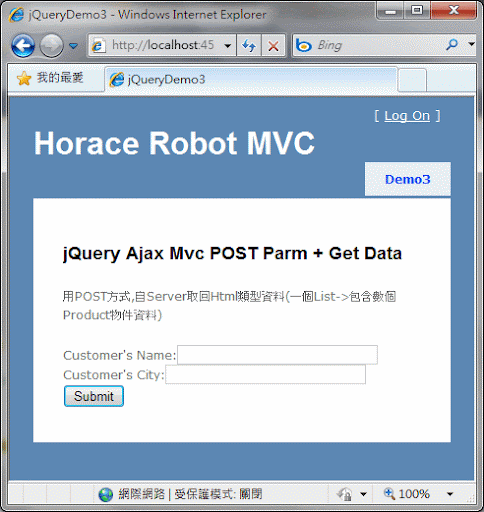
我們就可以執行這個MVC專案,我們點選Demo3這個頁籤,並輸入客戶的Name與City如下圖:


然後按下Submit按鈕後,就可呈現Ajax即時回應資料的網頁體驗,如下圖: